
Body:
If you’re experiencing Bluetooth connection issues with the 2M2 Tank 2 Pro and the MagicTank app on your iPhone, don’t worry! Follow the troubleshooting steps below to resolve the problem.
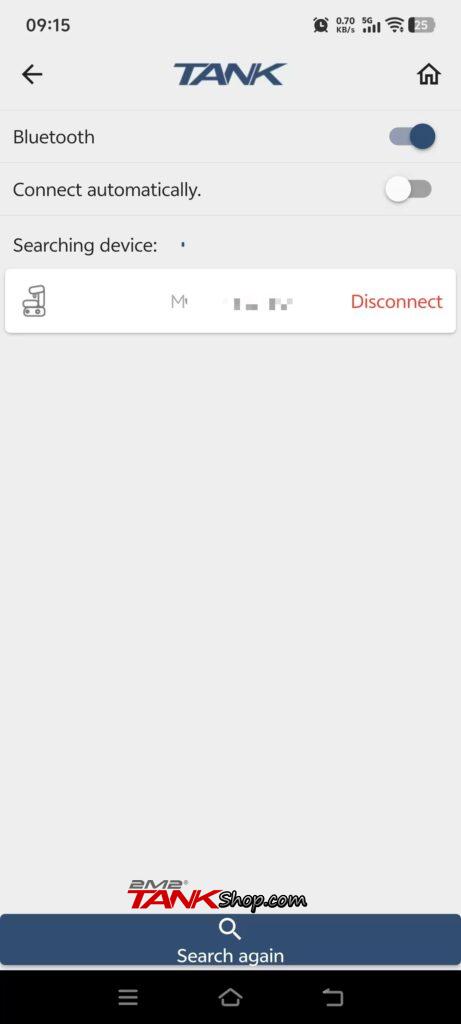
Step 1: Restart Bluetooth in the MagicTank App
First, open the MagicTank app on your iPhone and navigate to the Bluetooth connection interface. Turn off the Bluetooth option, wait for a few seconds, and then turn it back on. This will refresh the Bluetooth connection and may resolve the issue.
Step 2: Power Cycle the Devices
Next, completely close the MagicTank app on your iPhone. Then, turn off your 2M2 Tank 2 Pro. Wait for a few seconds and turn it back on. After the device is powered up, reopen the MagicTank app to reinitiate the connection.
Step 3: Check iPhone Bluetooth Settings
Ensure Bluetooth is enabled on your iPhone by going to Settings → Bluetooth. If your 2M2 Tank 2 Pro appears under “My Devices,” tap the info icon (i) and select Forget This Device. Afterward, try searching for the device again through the MagicTank app.
Step 4: Reinstall the MagicTank App
If the issue persists, try uninstalling and reinstalling the MagicTank app. Visit the App Store, uninstall the app, and then reinstall the latest version to ensure compatibility with your device.
Important Note:
The 2M2 Tank 2 Pro does not require a manual pairing process. By following the steps above, you will reset the Bluetooth handshake automatically.
If the issue still isn’t resolved:
If none of the above steps work, please reach out to our support team with a short video showing the power-on LED behavior and the scanning screen of the MagicTank app. We’ll be happy to assist you further!
Contact Support
For more troubleshooting tips or assistance, contact us via :